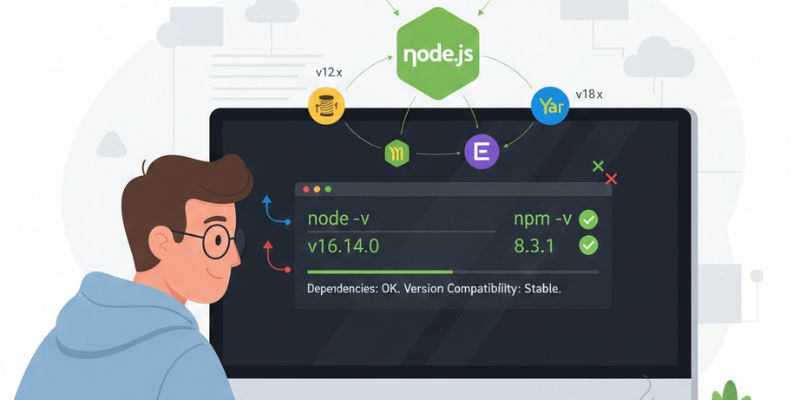
One of the most popular technologies for creating contemporary websites and applications is Node.js. It helps developers create quick, scalable, and effective apps for a variety of platforms. However, many novices and even seasoned programmers encounter problems when incompatible Node.js versions cause applications to malfunction. Because of changes in features, dependencies, or package support, a project created with one version of Node.js might not function properly with another.
Because of this, verifying Node.js version compatibility is crucial to the development and upkeep of software. FITA Academy supports learners in developing Node.js fundamentals, backend development skills, API integration knowledge, and server-side application management through practical projects and real-time coding sessions.
Understanding Node.js Versions and Release Cycles
Developers can select the appropriate version for their projects thanks to Node.js’s structured release cycle. Current releases and Long-Term Support (LTS) releases are the two primary release types that the platform typically offers. Current versions are appropriate for testing and experimentation because they include the most recent features and updates. Conversely, LTS versions are made for long-term production use, stability, and dependability. Because LTS versions offer extended support, security patches, and performance enhancements, the majority of businesses and professional developers favor them.
The JavaScript engine, APIs, and system behavior are updated with every version of Node.js. The functionality of packages and applications may be impacted by these modifications. For instance, because some contemporary JavaScript features might not be present in earlier versions, a package created for Node.js 18 might not work correctly on Node.js 12. Before beginning a project, developers should always check the official compatibility requirements. Teams can plan upgrades and avoid using unsupported versions that could expose applications to security risks or performance problems in production environments by having a thorough understanding of release cycles.
Why Version Compatibility Matters
An application’s stability and success are directly impacted by Node.js version compatibility. Developers frequently run into installation issues, runtime errors, dependency conflicts, or broken features when they use incompatible versions. Because they rely on contemporary APIs or JavaScript features, many well-known frameworks and libraries call for particular Node.js versions. The program might not compile or behave strangely while running if the installed version does not adhere to those specifications. Node JS Training in Chennai offering practical, industry-focused guidance in backend development, API integration, server-side programming, database connectivity, real-time application development, and professional web development skills.
Security and performance are also significantly impacted by compatibility. Attackers may be able to take advantage of vulnerabilities in older versions of Node.js. More recent iterations offer better developer tools, quicker execution, and better memory management. Compatibility problems can cause deployment schedules to be delayed and development teams to have to perform needless troubleshooting. For instance, a developer working on a React application might find that Node.js 18 or later is the only version supported by the most recent Vite build tool. Such problems are avoided by installing the correct version. Developers guarantee more dependable applications across various systems and environments, more efficient workflows, and improved collaboration by upholding appropriate compatibility.
How to Check Installed Node.js and npm Versions
For every developer, checking the installed version of Node.js is an easy but crucial task. Using commands from a terminal or command prompt is the simplest approach. Developers can launch the terminal on Linux, macOS, or Windows and enter:
node -v
or
node –version
The command displays the currently installed Node.js version. To check the npm version, use:
npm -v
Developers can verify whether their environment satisfies project requirements with the aid of these commands. An upgrade is required, for instance, if a project calls for Node.js 20 but the terminal displays Node.js 16. After installing updates or changing environments, developers should confirm versions as well.
Verifying Compatibility with Frameworks and Packages
Before installing frameworks, libraries, or third-party packages, developers should always confirm compatibility. In their official documentation, the majority of contemporary frameworks explicitly state which Node.js versions are supported. To assist developers in selecting the appropriate runtime environment, Angular, Next.js, and Express, for instance, offer compatibility information. Dependency conflicts and unforeseen errors during development can result from disregarding these requirements.
Examining the package documentation on GitHub or npm repositories is one useful technique. To find out if their version of Node.js is supported, developers can examine compatibility tables, release notes, and installation instructions. Reading error messages during package installation is another helpful strategy. When a package needs a different version of Node.js, npm frequently shows warnings. B School in Chennai can significantly boost your career readiness and employability by enhancing your Node.js development skills, backend programming knowledge, API integration expertise, and real-world web application development experience.
Using package.json and Engines Field
Managing Node.js version compatibility is largely dependent on the package.json file. Project metadata, dependencies, scripts, and configuration information are all kept in this file. The engines field in the package.json file allows developers to specify the necessary version of Node.js. Teams can maintain uniform development environments across several systems with the aid of this method.
Managing Versions with NVM
One of the best tools for managing several Node.js versions is Node Version Manager, or NVM. Developers frequently work on multiple projects that call for various Node.js environments. NVM enables users to quickly switch between versions using straightforward terminal commands rather than repeatedly uninstalling and reinstalling versions.
Common Compatibility Issues and Troubleshooting Tips
In Node.js development, compatibility issues are frequently encountered, particularly when utilizing out-of-date packages or contemporary frameworks. One common problem is when the Node.js version is too old, which prevents npm packages from installing. Applications that use unsupported JavaScript features may also result in syntax errors for developers.
Carefully reading the entire error message is a practical troubleshooting step. When an installation fails, npm typically determines the necessary version of Node.js. Issues can frequently be fixed by reinstalling packages using npm install or updating dependencies using commands like npm update. When installation issues arise due to corrupted package data, developers should also clear the npm cache.
Best Practices for Maintaining Stable Node.js Environments
Careful planning and frequent updates are necessary to maintain a stable Node.js environment. Because LTS versions offer long-term security and support, developers should always use them for production applications. Because some dependencies may behave differently after updates, it’s crucial to test applications before updating Node.js versions.
The necessary Node.js versions should be explicitly documented by teams in project files and setup guidelines. Consistent environments across development systems are ensured by using tools such as NVM. Pipelines for automated testing can also be used to find compatibility problems prior to deployment. To enhance security and performance, developers should also routinely examine out-of-date dependencies and eliminate unsupported packages.
Conclusion
For contemporary developers, determining Node.js version compatibility is a crucial ability. Application stability, package functionality, framework support, and overall project performance are all impacted by compatibility. Developers can steer clear of many typical problems that impede development by comprehending Node.js release cycles, confirming framework requirements, and appropriately managing environments.
Workflow efficiency can be greatly increased by using simple techniques like using the engines field, managing environments with NVM, and verifying installed versions. Teams can maintain safe, scalable, and dependable applications across development and production systems with the aid of compatibility management. Whether you are a novice learning Node.js or a seasoned developer overseeing large-scale projects, understanding version compatibility will eventually enable you to create more dependable and seamless applications.